
Adding the assistant to your website
One line of code that adds the chat button to your site — and how to do it yourself.
- Under My assistant in the “Publishing” card press Publish (if not done yet).
- Under “Add to website” press Copy code.
- Paste the code on every page of your website just before
</body>. In website builders this is usually done under “Custom code” or “Footer scripts”. - Save and publish the changes on your website.
- Open your page. Result: a “Need a quick answer?” button in the bottom right corner. Press it and ask a test question.
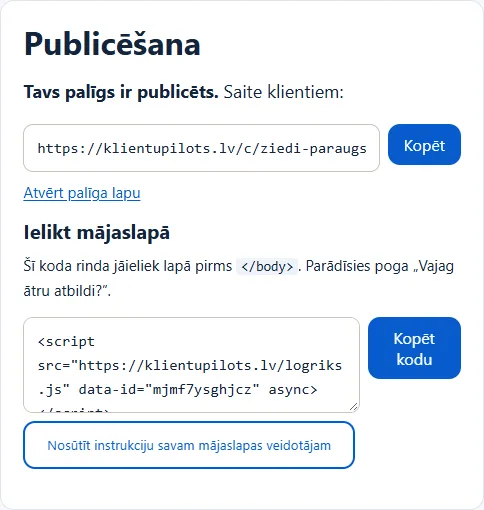
If someone else built your website, press “Send instructions to your web developer” — a ready text with the code and instructions that you can copy or open in your e-mail.
The code doesn’t change your page design and uses no cookies. If your page has a security policy (Content-Security-Policy), it must allow https://klientupilots.lv for scripts and frames.
Assistant appearance
Under My assistant → Assistant appearance you can choose one of 8 colours and an assistant icon or your company logo. The look is the same in the website widget and the chat link. On all plans.
At the bottom of the assistant there is a small “Powered by KlientuPilots.lv” note. On the Corporate plan it can be hidden. This applies only to this note in the chat — it is not a full “white-label” solution.